

A large screen does not prevent interruptions when remote participants cannot hear a question. When considering video meeting room installation in Ninh Binh, start with the user journey: entering the room, connecting a call, hearing each speaker, viewing documents and ending the session. This approach matches equipment to the work instead of buying a product list and only then trying to make everything work together.
1. Survey a typical meeting
Before selecting equipment, record the usual attendance, the most distant seat, table length and existing meeting platforms. An internal briefing differs from a session with guests bringing laptops; training also requires a clear view of the presenter and content. For an office in Ninh Binh, inspect the actual premises rather than assuming network quality or noise levels from the address. The initial brief should include room photos, dimensions, power and network points, and current difficulties.
2. Remote participants must hear every seat
Position microphones around pickup coverage and speaking habits, not simply where they look neat on a table. Test the farthest seat, someone turning their head and a quiet speaker. Air-conditioning noise, glass, bare walls and large tables can reduce speech clarity. Suitable curtains, acoustic treatment and repositioning may be necessary before increasing volume. Echo cancellation helps stop loudspeaker sound returning through the microphone, but cannot replace treatment of a highly reverberant room.
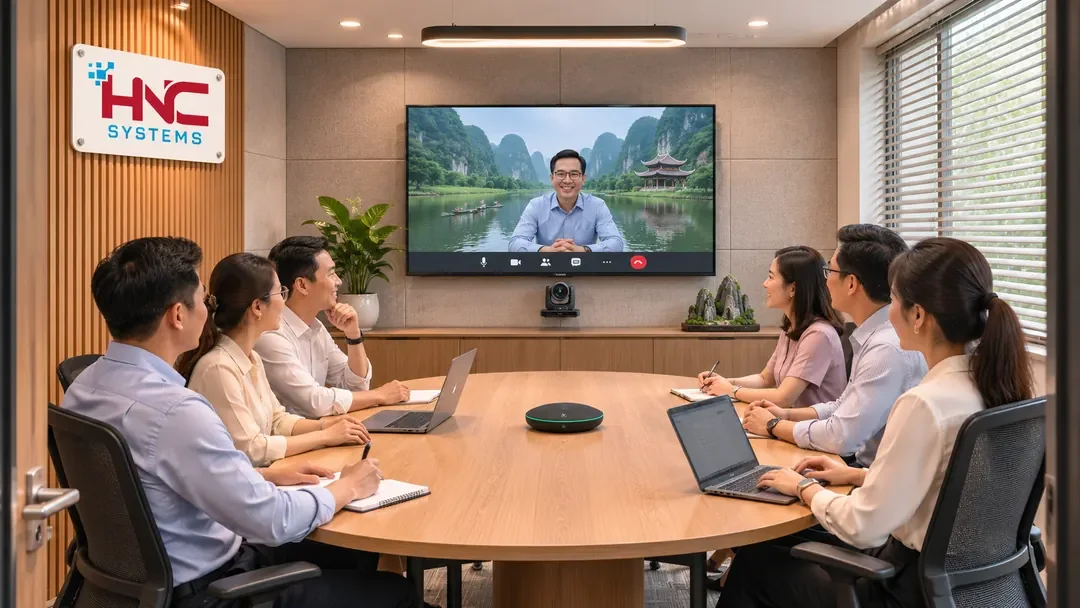
3. The camera must show the conversation
Camera coverage should include all intended seats without cropping the nearest participant's face. Mounting near seated eye level and close to the screen often makes conversation more natural, but confirm the final height in the room. Avoid a bright window directly behind the speaker; try blinds and supplementary lighting first. If choosing automatic framing or speaker tracking, test two people speaking in succession. A feature that works in a demonstration may not suit every table arrangement.
4. Choose BYOD or a fixed room system
BYOD lets users host from their own laptop while using the room's camera, microphones and speakers. This can suit frequent platform changes, but requires checking ports, operating systems, installation permissions and each laptop's display output. A fixed room system reduces daily connection steps while introducing room-account, calendar, licensing and update management. Both approaches can coexist if supported. Do not assume every USB-C adapter carries video or every device fully supports every meeting platform.
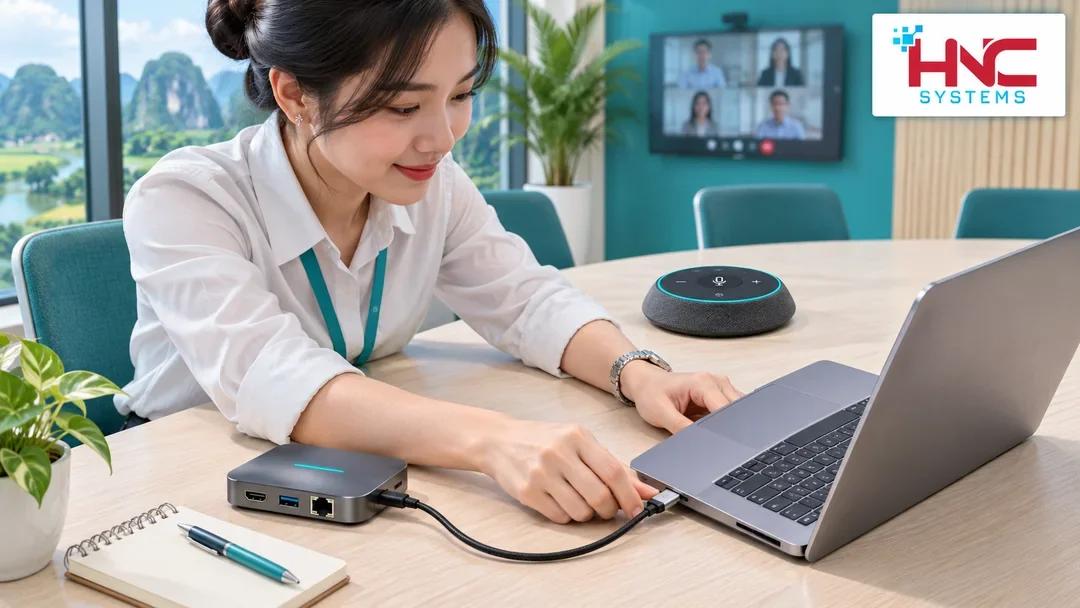
5. Test a guest's journey
Ask someone with little advance instruction to enter the room and start a test call. They must identify the power controls, source, cable and correct microphone, speaker and camera in the application. A one-page guide near the table should explain the standard route and what to do if there is no sound. If several laptops join the same call in one room, keep one main audio playback and capture system to reduce echo. Check guest-network access without casually sharing administrator accounts.
6. Shared content must be readable remotely
Do not test only a presentation with large lettering. Open a spreadsheet, a dense document and a short video if these reflect actual needs. The remote participant should confirm that essential details are readable, shared audio is audible when required, and switching between content and the speaker is convenient. Test wired and wireless sharing if both are included. Wired networking is often worth considering for fixed equipment, but stability still needs testing at times close to real use.
7. Accept the room through a real remote call
The acceptance checklist should cover calling from outside the office network, speaking from every seat, taking turns in both directions, muting, sharing documents and reconnecting after unplugging a cable. Record missing audio, frozen video, delays that hinder discussion and steps that must be repeated. Test with air conditioning running and everyday lighting. Agree beforehand on pass criteria, who signs off and how outstanding issues will be addressed. The local screen alone cannot establish meeting quality.
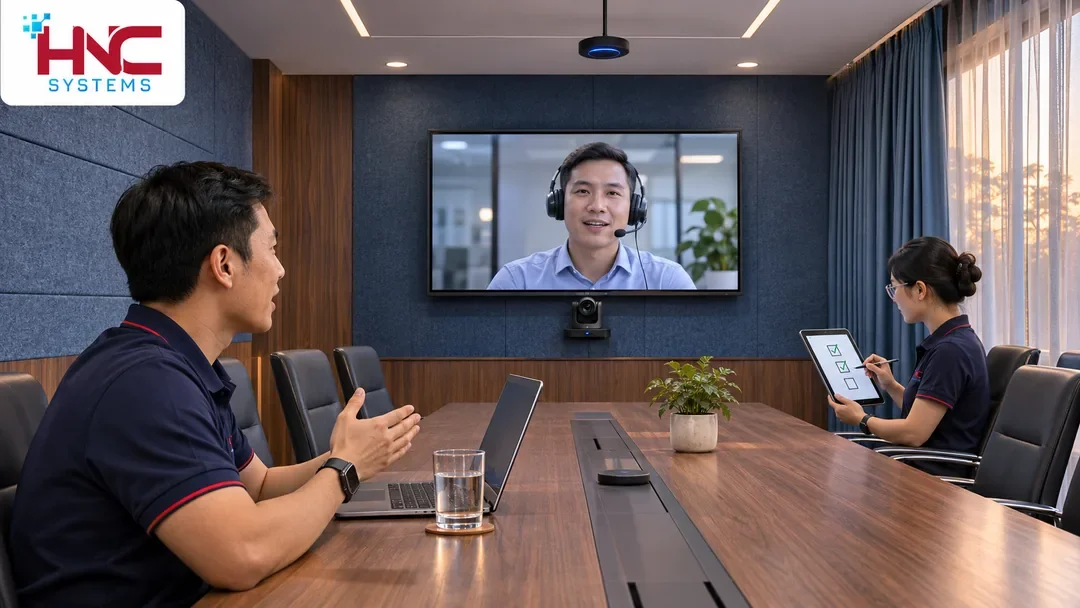
8. Hand over a room staff can operate
Handover should include a connection diagram, port labels, settings to retain, a short guide and agreed support contacts. Assign administrative access and update responsibilities clearly, avoiding dependence on a personal account. When requesting video meeting room installation in Ninh Binh, separate equipment, accessories, installation, acoustic treatment and any licensing costs. Contact HNC Systems on 0918.899.229 to discuss needs and survey scope; configuration, timing, warranty and support must be confirmed in a specific proposal.